Create Free Account

Site Documents Software

Site Documents, Current and Shown at the Gate.

The evacuation diagram, the asbestos register, the traffic plan: one place per site, an owner and an expiry on each, and the ones that matter shown to people as they sign in.

  • Facilities
  • Property Managers
  • Safety & HSE
  • Compliance
  • Site Managers
Only the newest version counts, and it says when it expires

What Site Documents Software Does.

Site documents software keeps the documents a site must hold, such as the evacuation diagram, current and findable. ComplyFlow puts a version, owner, and expiry on each, tracks the whole portfolio, and shows them at sign-in.

  • Each site keeps its own documents, in categories you set. Emergency, hazardous materials, traffic, contracts, compliance: system categories for the whole portfolio, site categories for the one building that needs more.
  • Every document carries a version, an owner, and an expiry. Supersede it and the old version stays in the history; only the newest counts for the status. Owners and site contacts are emailed monthly about anything expiring or expired.
  • You decide who sees what. Hidden from contractors by default, shown to them when you say so, restricted to a staff category when it is sensitive.

  • The ones that matter are shown at sign-in. Switch Display at Sign In on and the document is the last step of every staff and contractor sign-in at that site, viewed, downloadable, and logged in the book.
A facilities coordinator in a fire-stair riser cupboard photographing a dated asbestos label on a pipe lagging with her phone, a clipboard under her arm

What It Covers

The Whole Module, Not the Highlights.

Everything below is in the product today and documented in the Help Centre.

Hold

Show

Track

Every item links to the Help Centre article that documents it.

How It Works

Four Screens That Carry the Module.

Real screens, not diagrams: one site’s documents, the whole portfolio, the sign-in that shows them, and the rules at the gate.

One Site, Every Document, Every Status.

Each document with its category, version, owner, and expiry, and its status at a glance. Two switches per document decide whether contractors can see it and whether it is shown at sign-in. Supersede it and the history keeps the old version.

  • Version, owner, and expiry on every document
  • Uploaded, expiring soon, expired, needs updating
  • Shown at sign-in and to contractors, per document

The Whole Portfolio, on One Screen.

Every site by document status. The building whose asbestos register has expired is the red segment, not a surprise in an audit. Owners and site contacts are emailed monthly about anything expiring or expired, so the chart moves without you chasing.

  • Current, expiring in 90 days, expired, pending
  • One bar per site
  • Monthly email to owners and site contacts

Shown to the People Who Need Them, at Sign-In.

Switch Display at Sign In on and the evacuation diagram, the traffic plan, or the register is the last step of every staff and contractor sign-in at that site. They view it, they can download it, and the book records that it was shown.

  • The final step of the sign-in flow
  • Staff and contractors, not visitors
  • What was displayed, logged in the book

Who Sees What, Decided Once.

Uploads start hidden from contractors. Show a document to them when they need it, restrict a sensitive one to a staff category, and set by role who may create categories, upload, edit others’ work, or only read.

  • Hidden from contractors by default
  • Restrict to a staff category
  • Permissions by role and by site

Who It Is For

What Site Documents Means for Me.

Find your job. The three lines under it are what changes on your desk, not ours.

ComplyFlow Is Already Trusted.

Portfolios in property, transport, resources, manufacturing, government sites, and more already keep their site documents on ComplyFlow.

  • ISPT
  • BlueScope
  • CBRE
  • Lendlease
  • NSW Planning, Industry and Environment
  • Retire Australia

Book a Demo

Bring One Building’s Documents. We Will Load Them in Front of You.

A 30-minute call with someone who has set this up for portfolios and plants: your categories, your sites, your sign-in points, in the product.

  • One site’s documents loaded live, each with a version, owner, and expiry
  • One document switched on at sign-in and shown as the final step
  • The portfolio view that follows, one bar per site by status
Talk to Us Instead

No slides, no hard sell. A working session on your own set-up.

Book Your Demo

Thirty minutes, on your own requirements.

Book Demo

The form loads from HubSpot. If it does not appear, the button takes you to the demo request page.

How It Helps

Every Job in the Module: Digitised, Automated, Read by AI.

Three things make ComplyFlow different, and every job in site documents draws on all three.

  • 01

    The Whole Lifecycle, on One Record.

    The site that holds the documents is the site people sign in to and the site the contractor is cleared for. The evacuation diagram is shown at the same gate that checks the licence.

  • 02

    Your Procedures, Digitised & Automated.

    Your categories, your owners, your expiry windows. Reminders go out, statuses turn, and the sign-in shows the document without a coordinator sending it.

  • 03

    AI That Answers the Question.

    Which sites have an expired register, which documents nobody owns, what was shown to a contractor on the day: asked in plain English through MCP.

What you do Digitise Automate AI
Set up a site Categories for the portfolio and for the site, a site contact, a parent and its children. Every new site starts with the system categories it must fill. Ask your assistant which sites still have a category with nothing in it.
Load a document Site, category, version, expiry, owner, from one upload or a ZIP. Hidden from contractors until you say; the owner set to the uploader. Ask which documents were uploaded this month and by whom.
Keep it current Supersede with a new version; the history keeps the old. Expiring soon at 90 days, expired on the day; owner and contact emailed monthly. Ask which registers expire before the end of the quarter.
Show it Display at Sign In, per document; hide from contractors; restrict to a staff category. The last step of every sign-in at the site, logged in the book. Ask what a contractor was shown when they signed in on Tuesday.
Report on it The portfolio overview by status; each site’s list with versions. Dashboard alerts; sites through the API. Ask in plain English through ChatGPT, Claude, or Copilot.
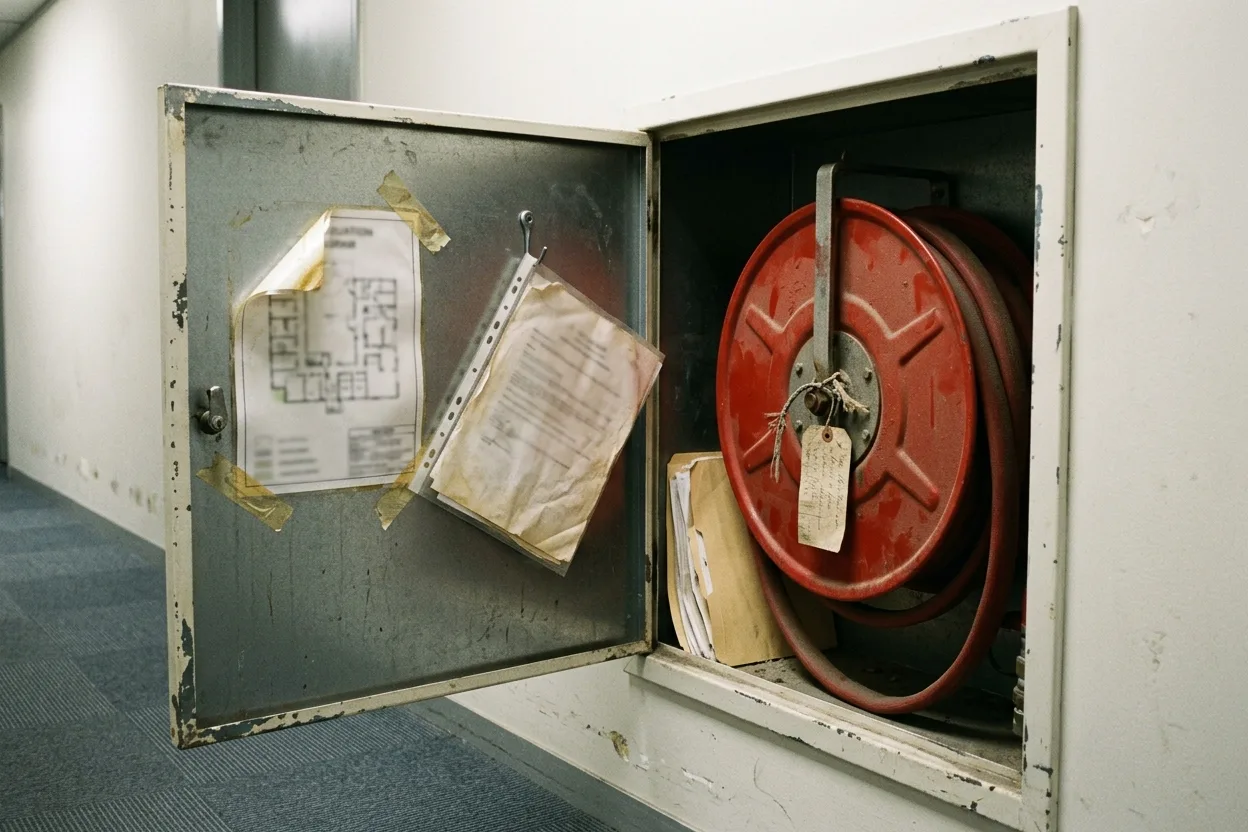
A fire-hydrant cupboard in a building corridor with a laminated evacuation diagram taped inside the door, curling, and a plastic sleeve of loose papers hanging from a hook

How It Stacks Up

Where Site Documents Usually Live, and What Each Misses.

Most portfolios keep site documents in a shared drive, a document system, or a folder in the site office. Each covers part of it.

A shared driveEverything is there, and three versions of itA document management systemVersioned, permissioned, and never seen by anyone on siteA folder in the site officeWhere the last facilities manager left it ComplyFlowOne record, your standard
A version, an owner, and an expiry on every document Not thereBuilt inNot there Six statuses; only the newest version counts
The whole portfolio by status on one screen Not therePartlyNot there One bar per site, expiring and expired in colour
Shown to people as they sign in to the site Not thereNot thereNot there The last step of every sign-in, logged in the book
Contractors see only what you choose PartlyBuilt inNot there Hidden by default; per document, per staff category
Owners and site contacts reminded before expiry Not therePartlyNot there Dashboard alert and a monthly email
Proof of what a contractor was shown on the day Not thereNot thereNot there In the Sign in Book PDF, against the person

This compares kinds of product, by how they are sold, not named vendors. Named comparisons, with dates and sources, live on the comparison pages.

Getting Started

We Set It Up With You. We Stay With You.

You are not handed a login and left to it. Our onboarding team maps your categories, loads your first sites with you, and stays on hand once documents start showing at sign-in.

  • Mitch Bourne, ComplyFlow
  • Jessica Morgan, ComplyFlow
  • Sam Bourne, ComplyFlow
  • Phil Wallach, ComplyFlow
  • John McCann, ComplyFlow
  1. 1 We Map Your Categories

    What every site must hold, what only some sites hold, and who owns each kind of document.

  2. 2 We Load Your Sites

    Sites and their children, site contacts named, and the documents you have today uploaded with their versions and expiries.

  3. 3 We Set Who Sees What

    Contractor visibility, staff-category restrictions, and which documents show at which sign-in points.

  4. 4 You Go Live, We Stay Close

    Training for your facilities team, a Help Centre for everyone, and a support team that picks up the phone.

  • ISO 27001 certified ISO 27001Certified 2019
  • AWS Qualified Software Certified 2023
  • GDPR, General Data Protection Regulation Compliant 2020
  • Microsoft Okta Single sign-on

Security & Data

Certified, Audited & Hosted in Australia.

Your compliance record is the evidence you rely on when somebody asks, so where it lives and who can reach it matters. ComplyFlow is ISO 27001 certified, runs on AWS in Australia, and your people sign in with the accounts they already have.

Questions

Questions People Ask About Site Documents Before a Demo.

What counts as a site document?

Anything a site must hold and keep current: evacuation diagrams, asbestos registers, traffic management plans, essential safety measures reports, contracts, permits to occupy. You define the categories; system categories apply to every site and site categories to one.

How do contractors see them?

Two ways, both under your control. Untick Hide from Contractors and a contractor cleared for the site can open the document from their account. Switch on Display at Sign In and it is shown, viewable and downloadable, as the last step of their sign-in at that site, and the book records that it was displayed.

What happens when a document expires?

At 90 days out it reads expiring soon; on the day it reads expired. The document owner and the site contact get a dashboard alert and a monthly email until a new version is uploaded. Supersede it and the status resets; the old version stays in the history.

Can we restrict a sensitive document?

Yes. Restrict to Staff Category makes it visible only to the internal staff category you choose, and contractors never see documents marked hidden. Permissions by role decide who can create categories, upload, edit or supersede others’ uploads, or only view.

Does it work for a campus or a project with zones?

Yes. Sites can be arranged as parents and children, so documents sit at the level they belong to and the overview still rolls up across the portfolio.

Can our other systems read it?

Sites are available through the REST API, and through MCP an assistant such as ChatGPT, Claude, or Copilot can be asked which sites have an expired or missing document.

See It With Your Own Buildings.

Book a 30-minute demo. We will load one site’s documents live, switch one on at sign-in, and show the portfolio view that follows. No slides, no hard sell.

  • ISO 27001
  • Hosted on AWS
  • Microsoft & Okta SSO
  • API & MCP
  • Data in Australia

Compliance you can prove, instantly.